




If you have ever spent time staring at a plain, black-and-white command line tool, you probably felt a bit bored. For years, the terminal was a place for simple text, flashing cursors, and confusing commands. However, things have changed. More developers are realizing that the terminal can be just as beautiful and interactive as a modern web browser. This is where FTXUI comes into the picture. FTXUI is a modern C++ library that allows you to create incredibly rich, interactive terminal user interfaces. It is not just about making things look pretty, because it is also about making tools that are easier to use and more efficient for the people who spend their whole day in a terminal environment.
When I first started playing around with C++ tools, I used to rely on simple std::cout statements. If I wanted to get fancy, I would look into “Ncurses.” But let me tell you, Ncurses is a headache for anyone who grew up with modern programming languages. It feels outdated and complex because it uses a very procedural way of doing things. You have to manually manage where every character goes and remember to refresh the screen constantly. FTXUI, created by Arthur Sonzogni, flipped this on its head. It uses a “functional” approach, which is much closer to how modern web frameworks like React work. This makes it a breath of fresh air for anyone who wants to build a dashboard or a system tool without losing their mind over memory management or screen clearing bugs.
Why You Should Care About Functional TUIs
The word “functional” might sound a bit scary if you are a beginner, but in the context of FTXUI, it just means that the interface is a result of your data. Instead of telling the computer exactly how to draw a button on the screen at coordinates X and Y, you simply describe the structure of your UI. You might say that you want a vertical box containing a title, a separator, and a list of items. FTXUI handles all the math and the rendering for you. This is a massive deal because it means you can change your UI structure on the fly without rewriting your entire rendering logic. It allows for a level of flexibility that was previously very difficult to achieve in C++ terminal programming.
Another reason why FTXUI is gaining so much popularity is its cross-platform nature. If you have ever tried to write a terminal app that works perfectly on both Linux and Windows, you know the struggle. Windows consoles and Linux terminals speak different languages. FTXUI acts as a bridge between these worlds. It handles the weirdness of the Windows Command Prompt and the complexity of modern Linux terminal emulators automatically. This means you can write your code once and it will look great whether your user is on a MacBook, a high-end Ubuntu workstation, or a dusty old Windows laptop. This level of portability is essential for modern software that needs to reach as many users as possible.
Setting Up Your First FTXUI Project
Setting up C++ libraries is notoriously annoying. I have spent many nights fighting with linker errors and missing headers. Thankfully, FTXUI is very friendly toward modern build systems. If you are using CMake, which is the standard for C++ these days, you do not even have to download the library manually. You can use a feature called FetchContent. This allows your build system to go out to GitHub, grab the latest version of FTXUI, and include it in your project automatically. It is a game-changer for productivity. You do not have to worry about whether your team members have the right version installed on their local machines because the code handles the setup itself.
Once the library is linked, the fun begins. Every FTXUI application revolves around three main parts: the Screen, the Component, and the Loop. The Screen represents the physical space of your terminal. The Component is the piece of the UI you are building, such as a button or a slider. The Loop is what keeps the application running and listening for your keyboard or mouse movements. I remember the first time I got a simple button to change its color when I clicked it. It felt like magic because I didn’t have to write any complex event handling code. I just told the component what to do when an event happened, and it worked.
Layouts and the Power of the DOM
In the world of web development, we use something called the Document Object Model or DOM. FTXUI brings a similar concept to the terminal. You build your interface by nesting elements inside each other. For example, you can use vbox to stack things vertically and hbox to line them up horizontally. This sounds simple, but it allows for incredibly complex designs. You can add borders around specific sections, add padding to make things look less cluttered, and even use “flex” elements that grow or shrink depending on how big the terminal window is. This responsiveness is something that was very hard to do with older libraries.
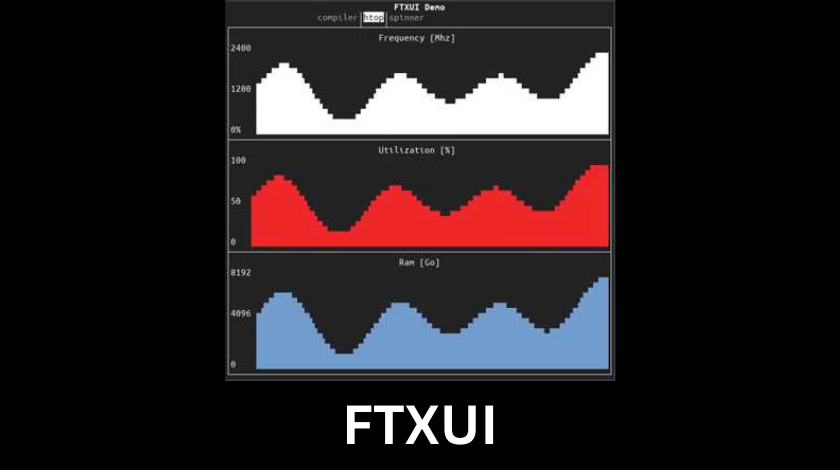
Let’s say you are building a system monitor. You might want a list of processes on the left and a graph of CPU usage on the right. In FTXUI, this is just a matter of putting a list component and a graph component inside an hbox. If the user decides to resize their terminal window, FTXUI will recalculate the sizes of both boxes and redraw them instantly. You don’t have to worry about characters overlapping or the layout breaking. This allows you to focus on the actual functionality of your tool rather than fighting with the display logic. In my experience, this saves about 70 percent of the development time when building complex interfaces.
Interaction: Making Your App Come Alive
A UI is not very useful if you cannot interact with it. FTXUI provides a huge library of built-in components like checkboxes, radio buttons, input fields, and dropdown menus. These components are “reactive,” meaning they update their state and redraw themselves whenever the user interacts with them. If you type your name into an input box, the internal variable holding that name updates automatically. This makes building forms and configuration tools very straightforward. You don’t have to write a bunch of boilerplate code to synchronize your data with your display.
One of the coolest features of FTXUI is mouse support. Most terminal libraries are keyboard-only, but FTXUI allows users to click on buttons and scroll through lists with their mouse. While power users usually prefer the keyboard, having mouse support makes your tool much more accessible to beginners. It makes the terminal feel less like a relic of the 1970s and more like a modern environment. I personally love adding mouse support to my tools because it makes them feel “premium.” It is that extra layer of polish that makes a tool stand out in a sea of basic command line scripts.
Colors, Unicode, and Visual Flair
We live in a world of color, and the terminal is no exception. FTXUI supports 256-color palettes and even TrueColor (16 million colors) if the terminal supports it. This allows you to create beautiful gradients and color-coded information. For example, you can make error messages bright red and success messages a soft green. You can also use Unicode characters to draw icons and symbols. This is how many modern terminal tools get those cool-looking folders and arrow icons. FTXUI makes it easy to integrate these characters without worrying about whether they will display correctly on different systems.
I often tell people that the aesthetics of a tool matter just as much as its functionality. If a tool is ugly and hard to read, people will not want to use it. By using the styling features in FTXUI, you can create a clear hierarchy of information. You can use bold text for headers and dimmed text for less important details. This guides the user’s eye and makes the tool much more intuitive. When I build tools for my colleagues, I always spend a bit of extra time on the colors and the layout. The feedback is always the same: they find the tool much more professional and easier to navigate than a plain text script.
Performance and Efficiency in C++
Since FTXUI is built with C++, it is incredibly fast. Even with complex layouts and animations, it uses very little CPU and memory. This is a huge advantage over “Electron” based apps that often consume hundreds of megabytes of RAM just to show a simple window. A terminal app built with FTXUI starts up instantly and responds to input without any noticeable lag. This is why terminal tools are still the preferred choice for developers and system administrators. They want tools that stay out of the way and get the job done quickly.
Furthermore, FTXUI is designed to be very efficient with screen updates. It does not redraw the entire screen every single time something changes. Instead, it calculates the difference between the current screen and the new screen and only sends the necessary updates to the terminal. This is very important if you are using your tool over a slow SSH connection. If the library sent the whole screen every time a single character changed, the experience would be laggy and frustrating. FTXUI’s smart rendering ensures that the interface remains snappy even when the connection is not perfect.
Lessons from the Field: My Experience with FTXUI
When I first started using FTXUI for a professional project, I was tasked with building a deployment dashboard for a group of engineers. They needed to see the status of several servers and be able to trigger updates with a single click. Initially, I thought about building a web app, but that would have required setting up a server, handling authentication, and making sure everyone had the right browser version. Instead, I built an FTXUI tool that they could run directly from their terminal.
The result was fantastic. The engineers loved it because they didn’t have to leave their terminal to check on their deployments. I was able to build a real-time table that updated as the servers reported back. I used different colors to indicate whether a server was healthy or failing. The whole project took me about a week, and most of that time was spent on the networking logic, not the UI. FTXUI made the interface part so easy that it felt like I was cheating. My biggest tip for anyone starting out is to look at the “examples” folder in the FTXUI GitHub repository. There are so many pre-made pieces of code there that you can copy and adapt for your own needs.
Best Practices for Terminal Design
Designing for the terminal is a bit different than designing for the web. You have limited space, and you are working with a grid of characters. One mistake I see people make is trying to cram too much information onto one screen. Just because you can draw a hundred different things doesn’t mean you should. It is better to use multiple tabs or a simple navigation menu to separate different parts of your application. FTXUI has a Tab component specifically for this purpose. It keeps the interface clean and prevents the user from feeling overwhelmed.
Another thing to keep in mind is keyboard shortcuts. Even if you have mouse support, the most productive terminal users will want to use their keyboard. Make sure your application has logical shortcuts. For example, using the ‘q’ key to quit or the arrow keys to navigate menus. FTXUI makes it very easy to catch these key presses and trigger actions. I always try to include a small “help” section at the bottom of my screens that lists the most common shortcuts. It is a small touch, but it makes the user experience much smoother for someone using your tool for the first time.
The Future of FTXUI and Terminal Tools
The terminal is not going away anytime soon. In fact, it is becoming more powerful. With the rise of the Windows Terminal and modern emulators like Alacritty and Kitty, we have more graphical capabilities than ever before. FTXUI is perfectly positioned to take advantage of this. We are seeing more and more professional tools being built this way, from database managers to cloud orchestration dashboards. It represents a shift toward tools that are lightweight, fast, and beautiful.
As a developer, learning a library like FTXUI is a great investment. It allows you to build internal tools for your team that look and feel professional. It also gives you a deeper understanding of how C++ can be used for modern, high-level tasks. While C++ has a reputation for being a “low-level” language for systems and drivers, FTXUI proves that it can also be used to create delightful user experiences. I am excited to see where the community takes this library next. Whether it is adding more complex animations or even better support for images in the terminal, the possibilities are endless.
Conclusion
FTXUI is a remarkable piece of software that brings modern UI concepts to the world of C++ terminal programming. It moves away from the complicated, error-prone methods of the past and offers a functional, declarative way to build interfaces. By using a DOM-like structure, providing cross-platform support, and enabling rich interactivity, it has become the go-to choice for anyone looking to build a TUI in 2024. Whether you are a seasoned C++ veteran or a student looking to make your first command line tool look professional, FTXUI has the tools you need. It turns the terminal from a boring text environment into a vibrant, interactive canvas.
FAQ
1. Is FTXUI hard to learn for beginners?
Not at all. If you understand the basics of C++ and have a general idea of how layouts work (like HTML/CSS), you will find it very intuitive. The functional approach is much easier to grasp than the old procedural methods used in Ncurses.
2. Does FTXUI work on Windows?
Yes, it has excellent support for Windows. It works with the traditional Command Prompt, PowerShell, and the modern Windows Terminal. It handles the differences in how these terminals render characters automatically.
3. Can I use FTXUI with other C++ libraries?
Absolutely. Since it is a standard C++ library, you can easily integrate it with networking libraries like Boost.Asio or database libraries like SQLite. It is often used to create the “front-end” for complex backend systems.
4. How does FTXUI compare to Ncurses?
Ncurses is the industry standard but it is very old and uses a complex API. FTXUI is modern, uses functional programming principles, and is much easier to use for creating responsive and interactive layouts.
5. Is FTXUI free to use?
Yes, it is an open-source library released under the MIT License. This means you can use it for both personal and commercial projects for free.